

AGENT_VAULT_SMTP_HOST is unset, email notifications are silently disabled.
See environment variables for the full list of SMTP variables.
Provider guides
Generic SMTP
Generic SMTP
Set the following environment variables for any SMTP provider:
string
default:"none"
Hostname of the SMTP server to connect to.
string
default:"587"
Port of the SMTP server. Use
465 for implicit TLS, 587 for STARTTLS.string
default:"none"
SMTP authentication username.
string
default:"none"
SMTP authentication password.
string
default:"none"
Sender email address (e.g.
[email protected]).string
default:"Agent Vault"
Display name used in the From header of outgoing emails.
string
default:"opportunistic"
TLS behavior for non-465 ports:
opportunistic (try STARTTLS, fall back to plain), required (STARTTLS must succeed), none (skip STARTTLS). Port 465 always uses implicit TLS.bool
default:"false"
Skip TLS certificate verification. Useful for self-signed certificates in development, not recommended for production.
Twilio SendGrid
Twilio SendGrid
- Create an account and configure SendGrid to send emails.
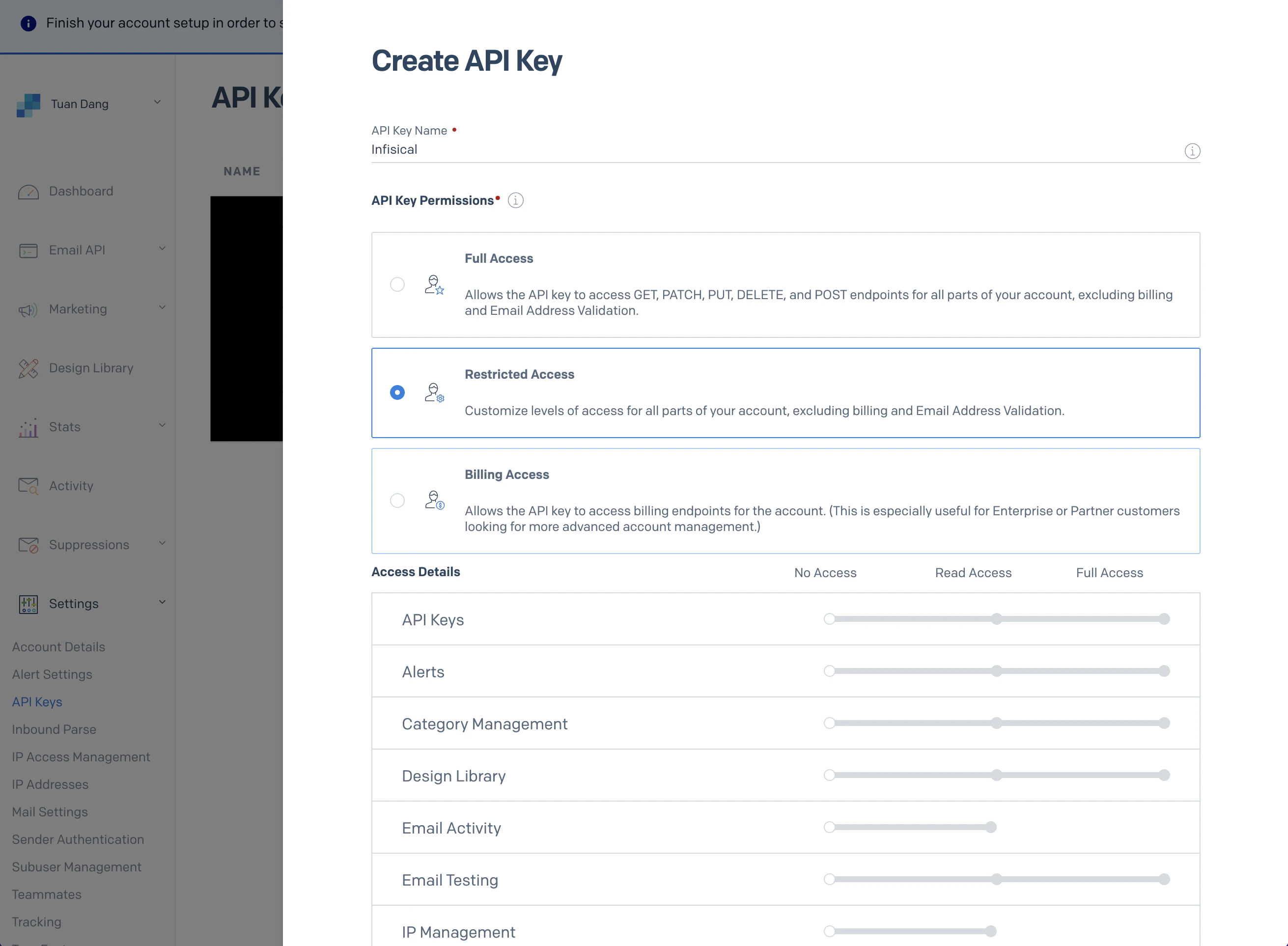
- Create a SendGrid API Key under Settings > API Keys.
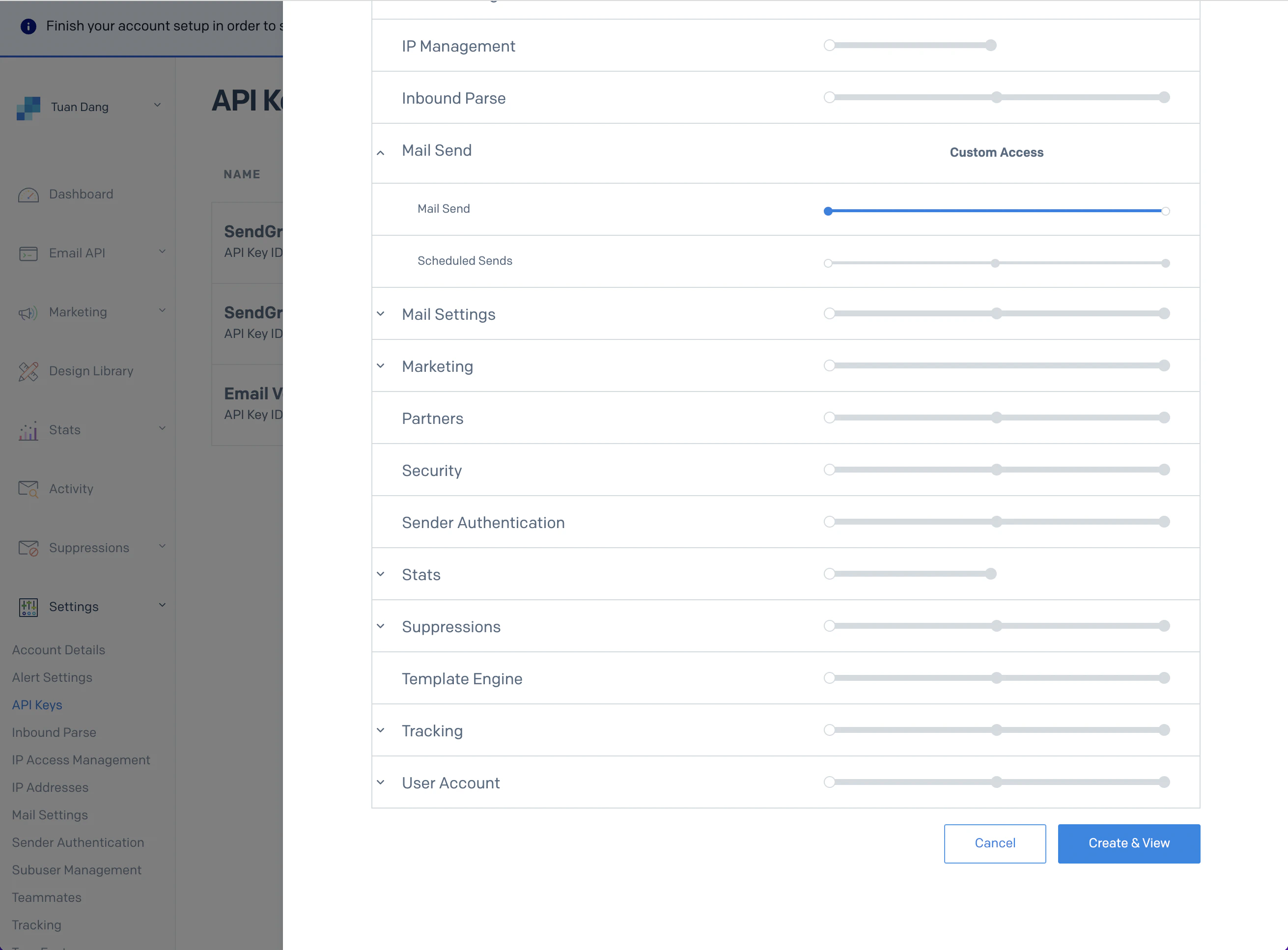
- Set a name for your API Key and select the “Restricted Key” option. Enable the “Mail Send” permission:
- With the API Key, set your SMTP environment variables:
Remember to restart Agent Vault after changing environment variables.
Mailgun
Mailgun
- Create an account and configure Mailgun to send emails.
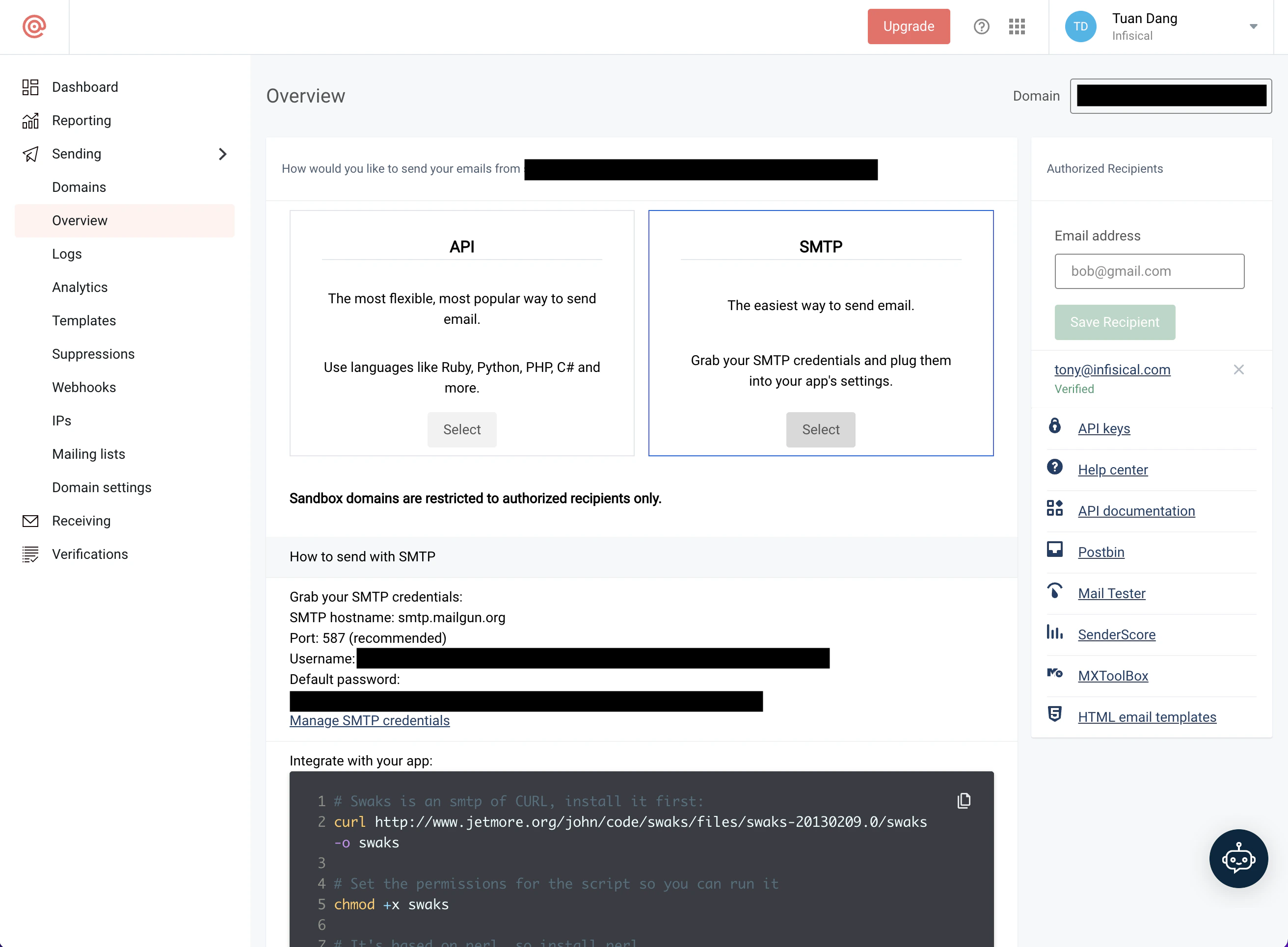
- Obtain your Mailgun credentials in Sending > Overview > SMTP.
- With your Mailgun credentials, set your SMTP environment variables:
AWS SES
AWS SES
1
Create a verified identity
This will be used to verify the email you are sending from.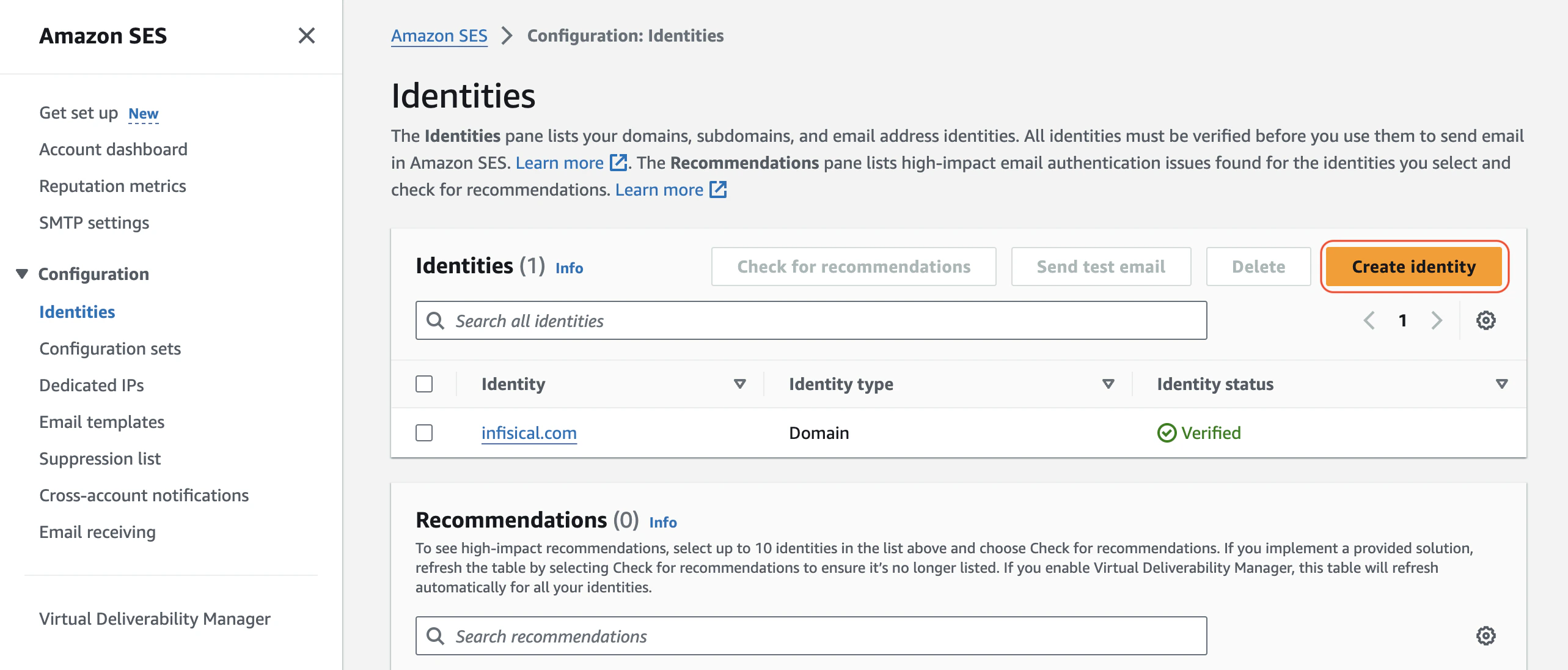
If your AWS SES is in sandbox mode, you will only be able to send emails to verified identities.
2
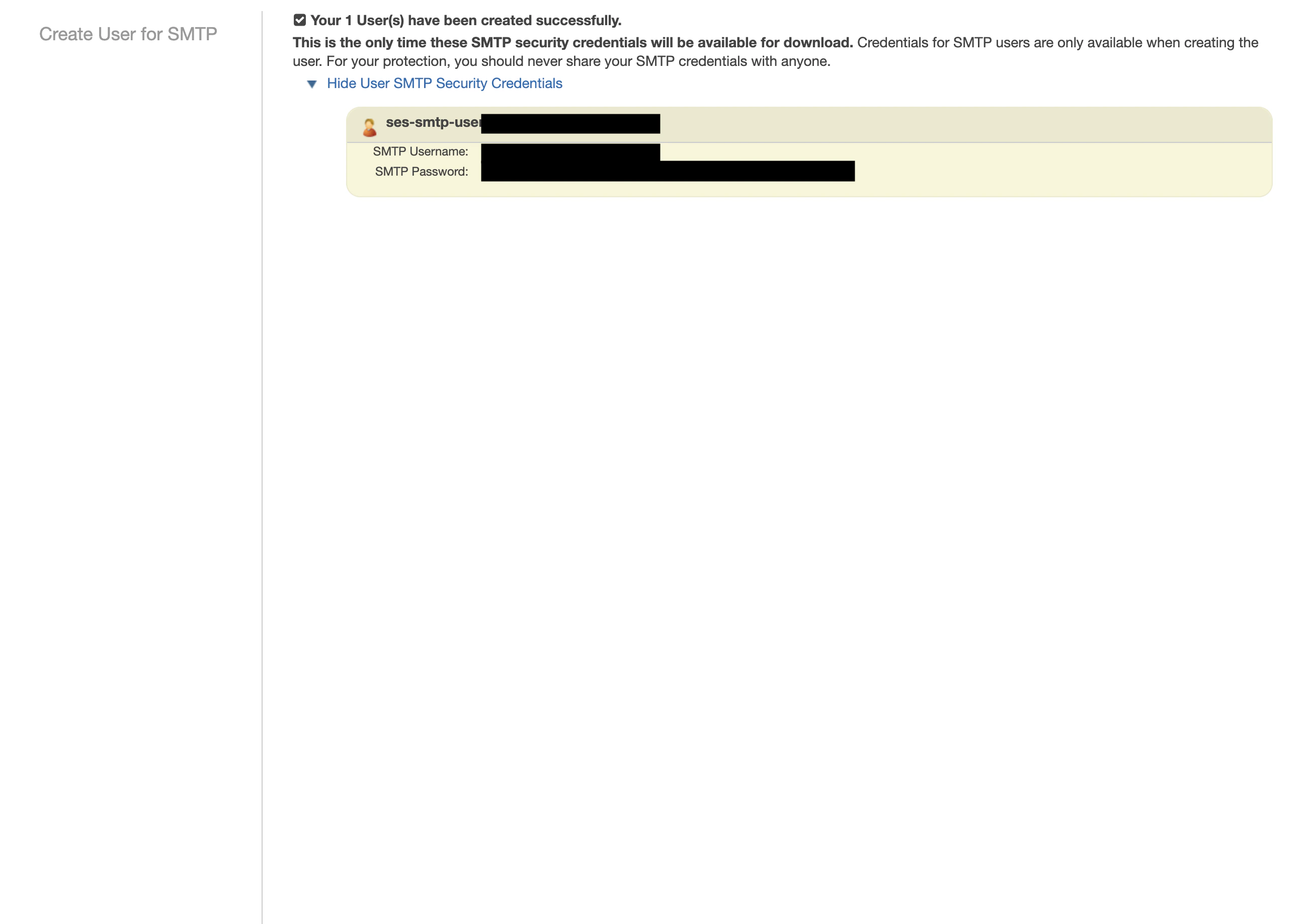
Create SMTP credentials
Create an IAM user for SMTP authentication and obtain SMTP credentials in SMTP settings > Create SMTP credentials.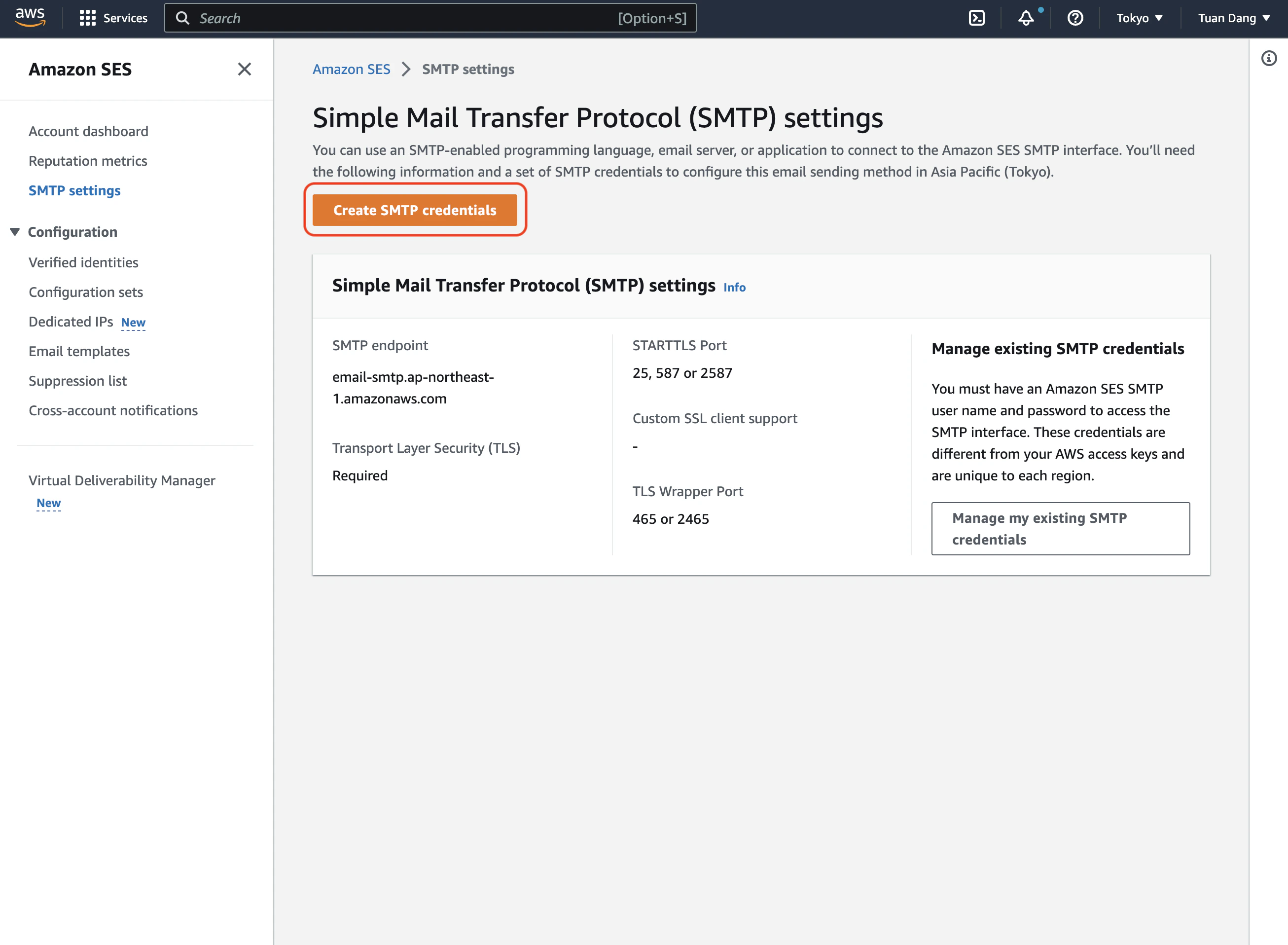
3
Set environment variables
With your AWS SES SMTP credentials, set your environment variables:
Remember to restart Agent Vault after changing environment variables.
SocketLabs
SocketLabs
- Create an account and configure SocketLabs to send emails.
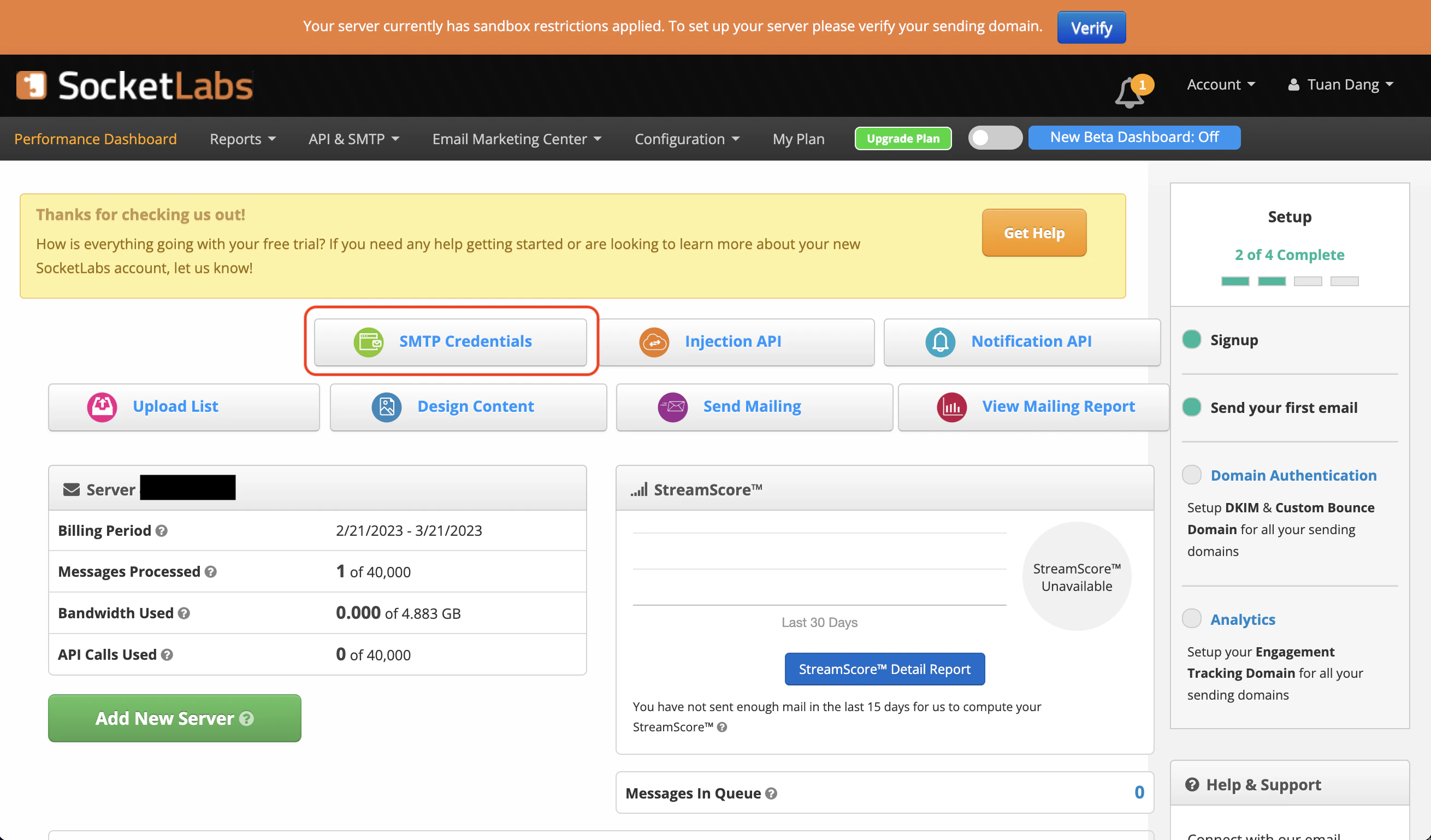
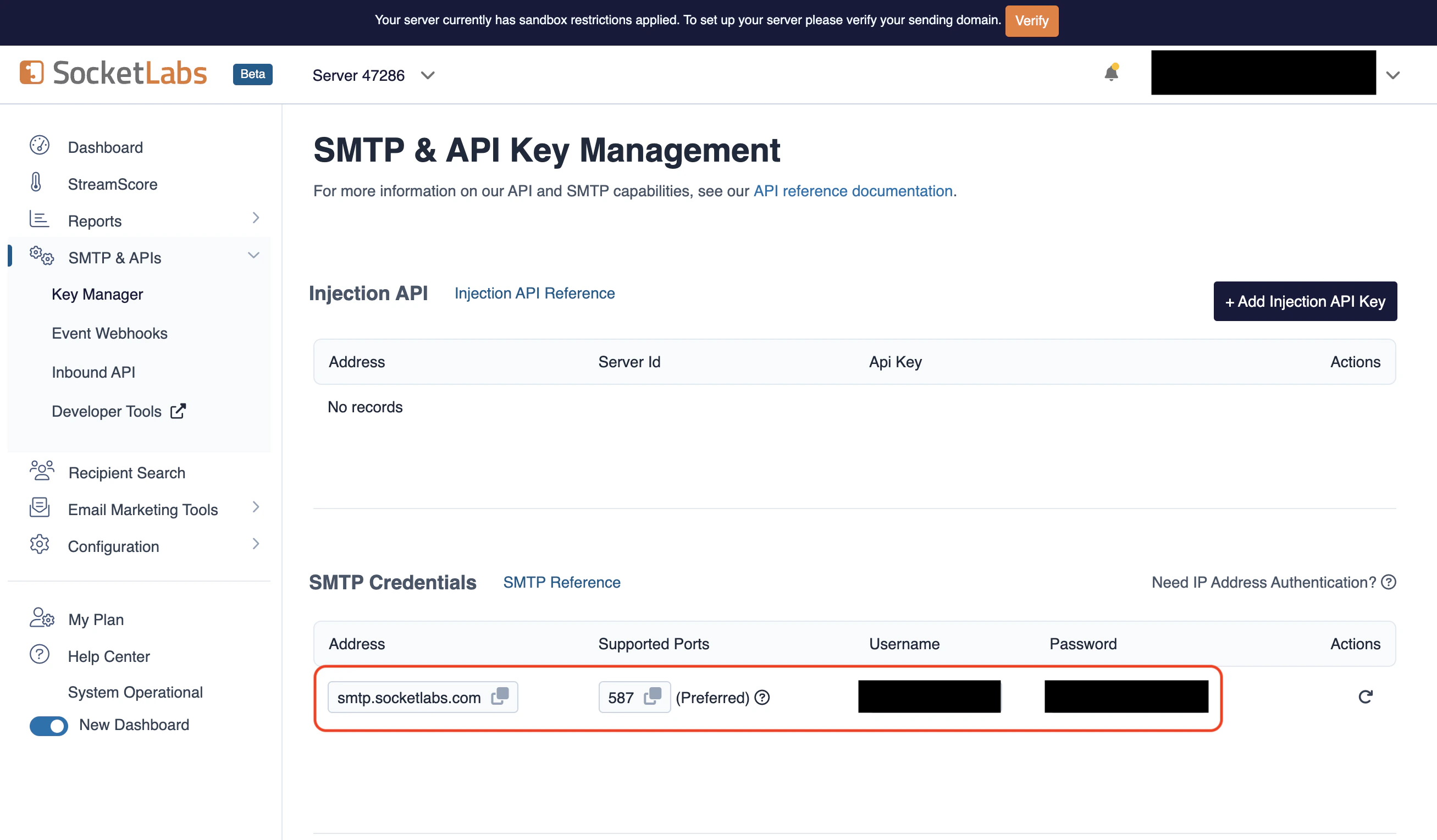
- From the dashboard, navigate to SMTP Credentials > SMTP & APIs > SMTP Credentials to obtain your credentials.
- With your SocketLabs SMTP credentials, set your environment variables:
The
AGENT_VAULT_SMTP_FROM should be an email for an authenticated domain under Configuration > Domain Management in SocketLabs. For example, if you’re using SocketLabs in sandbox mode, you may use an email like [email protected].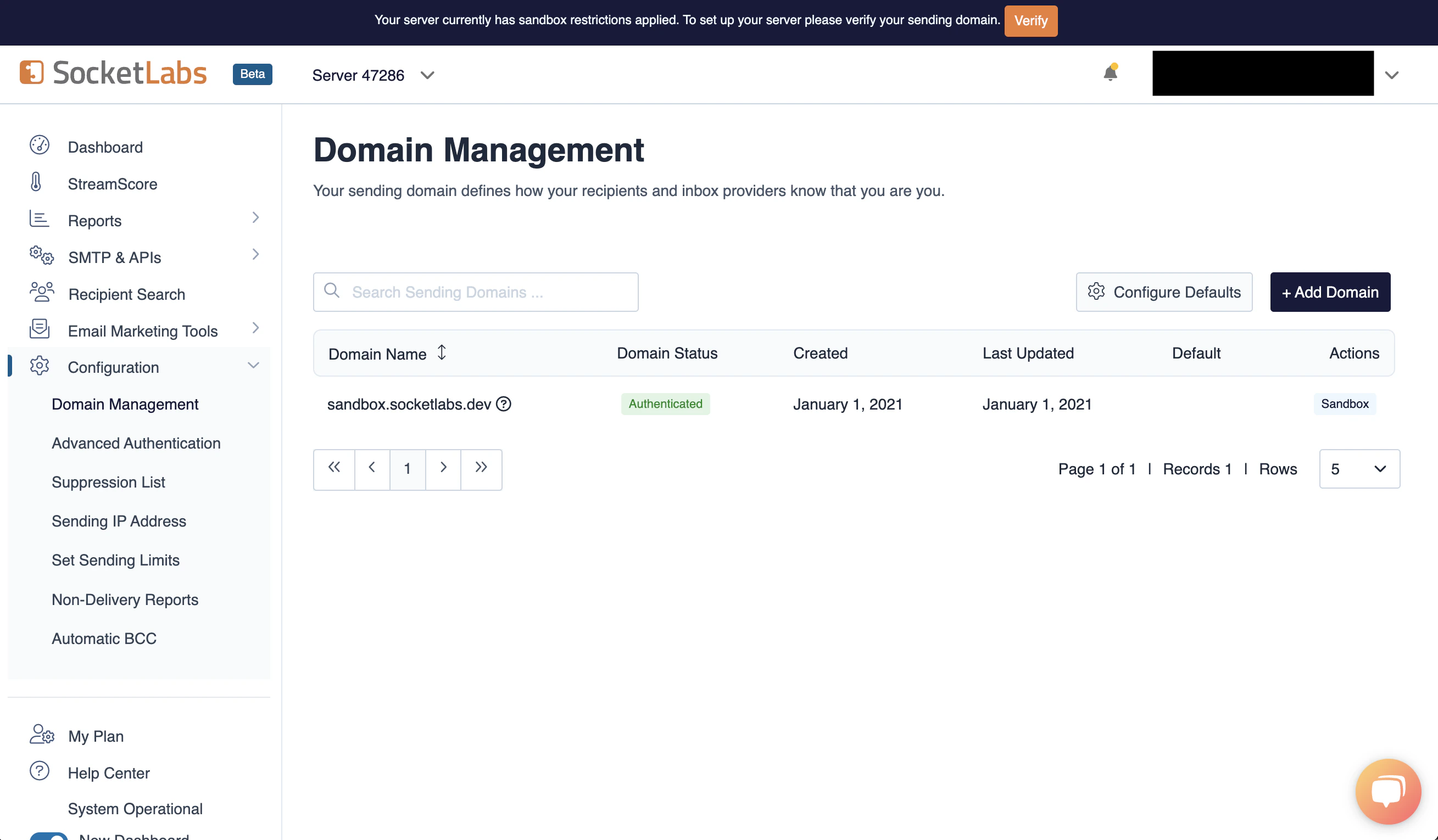
Remember to restart Agent Vault after changing environment variables.
Resend
Resend
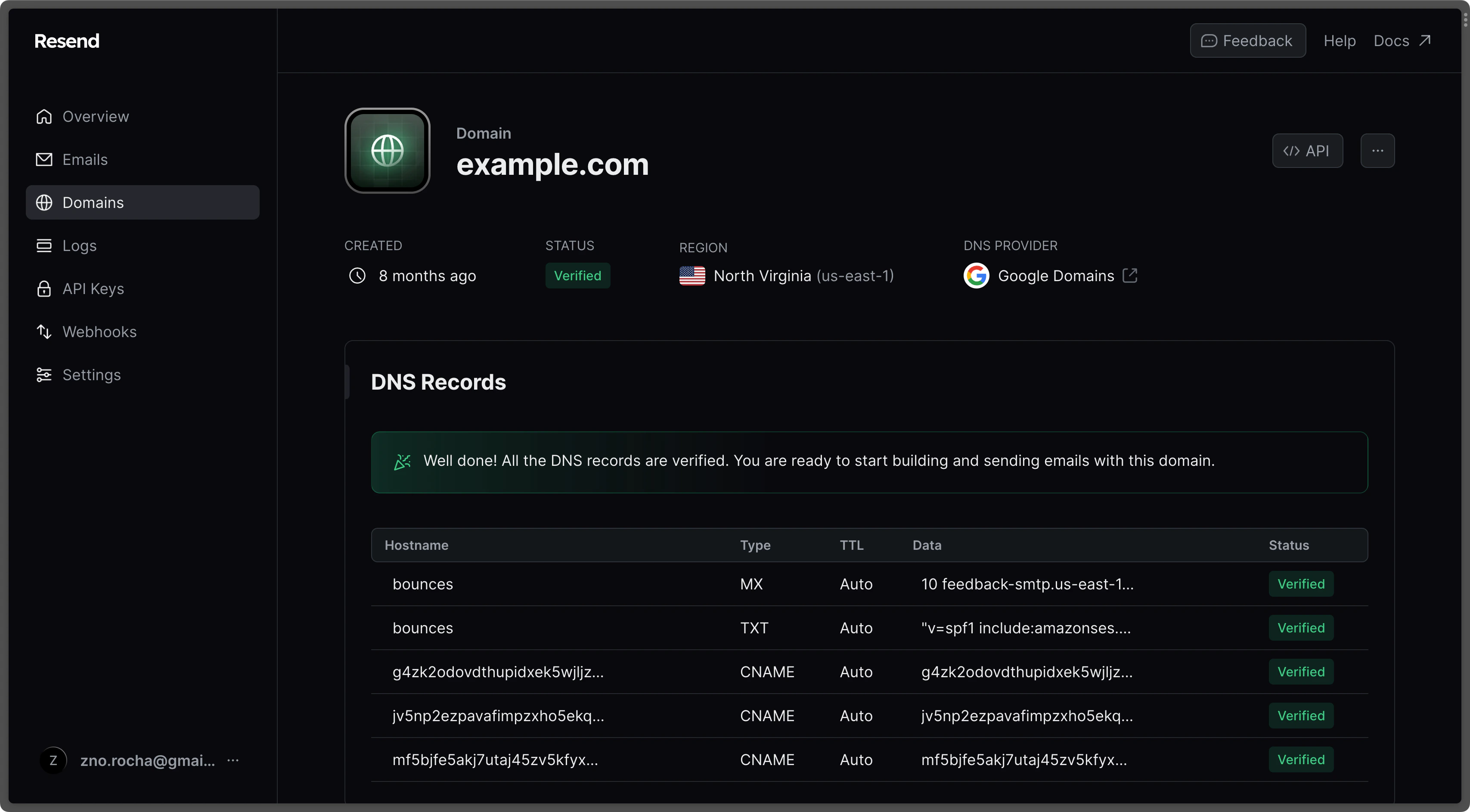
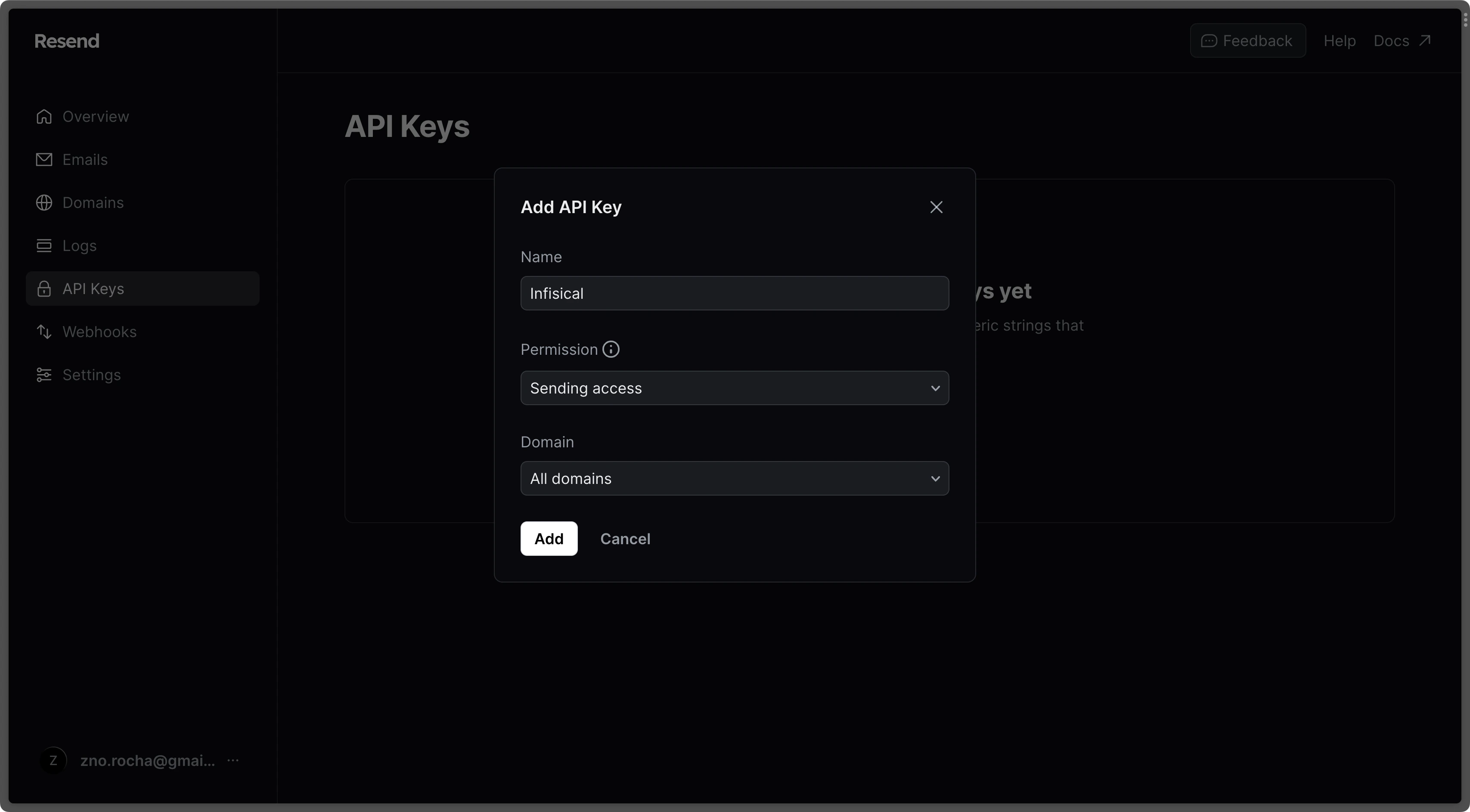
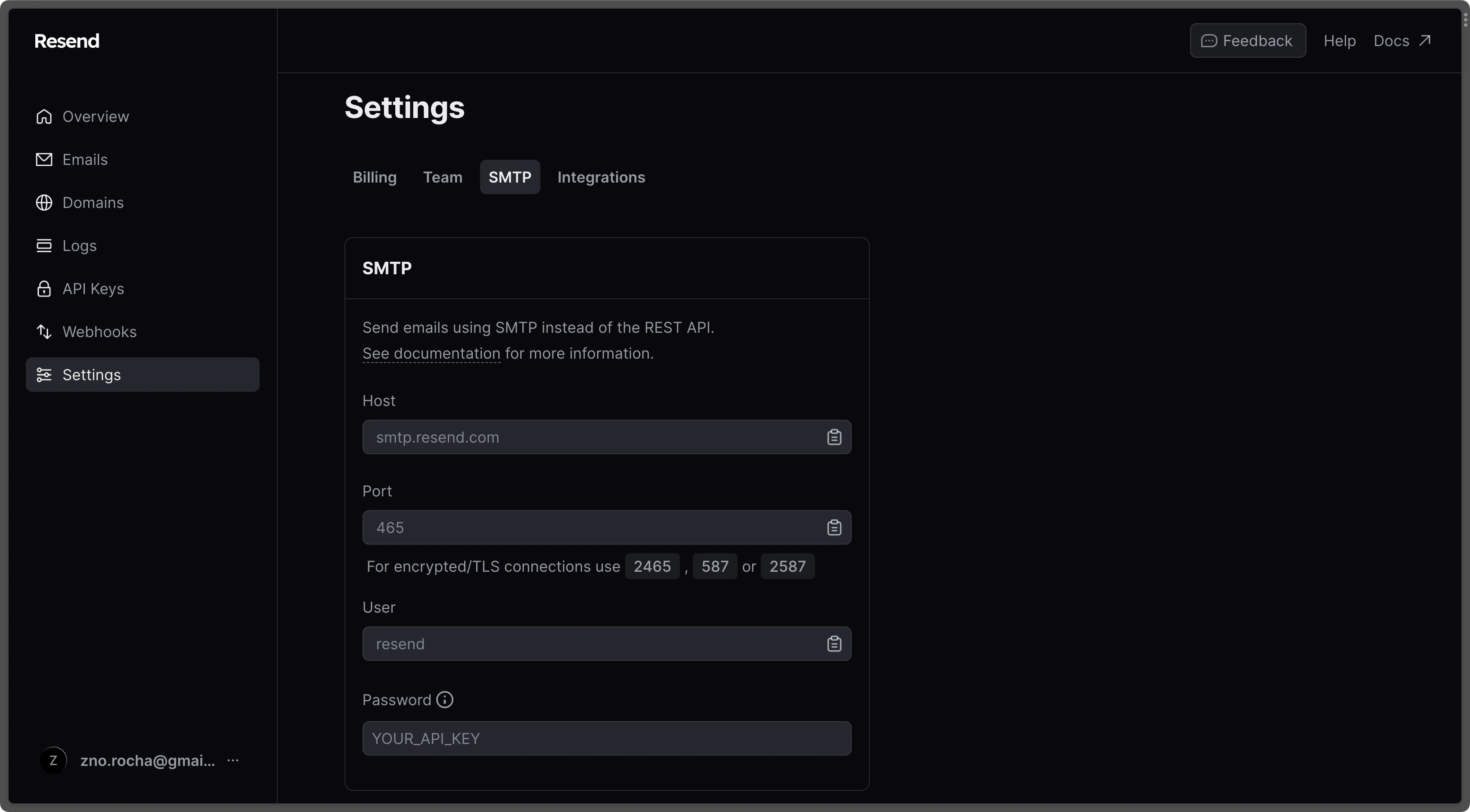
Gmail
Gmail
Create an account and enable “less secure app access” in Gmail Account Settings > Security. This allows applications like Agent Vault to authenticate via your username and password.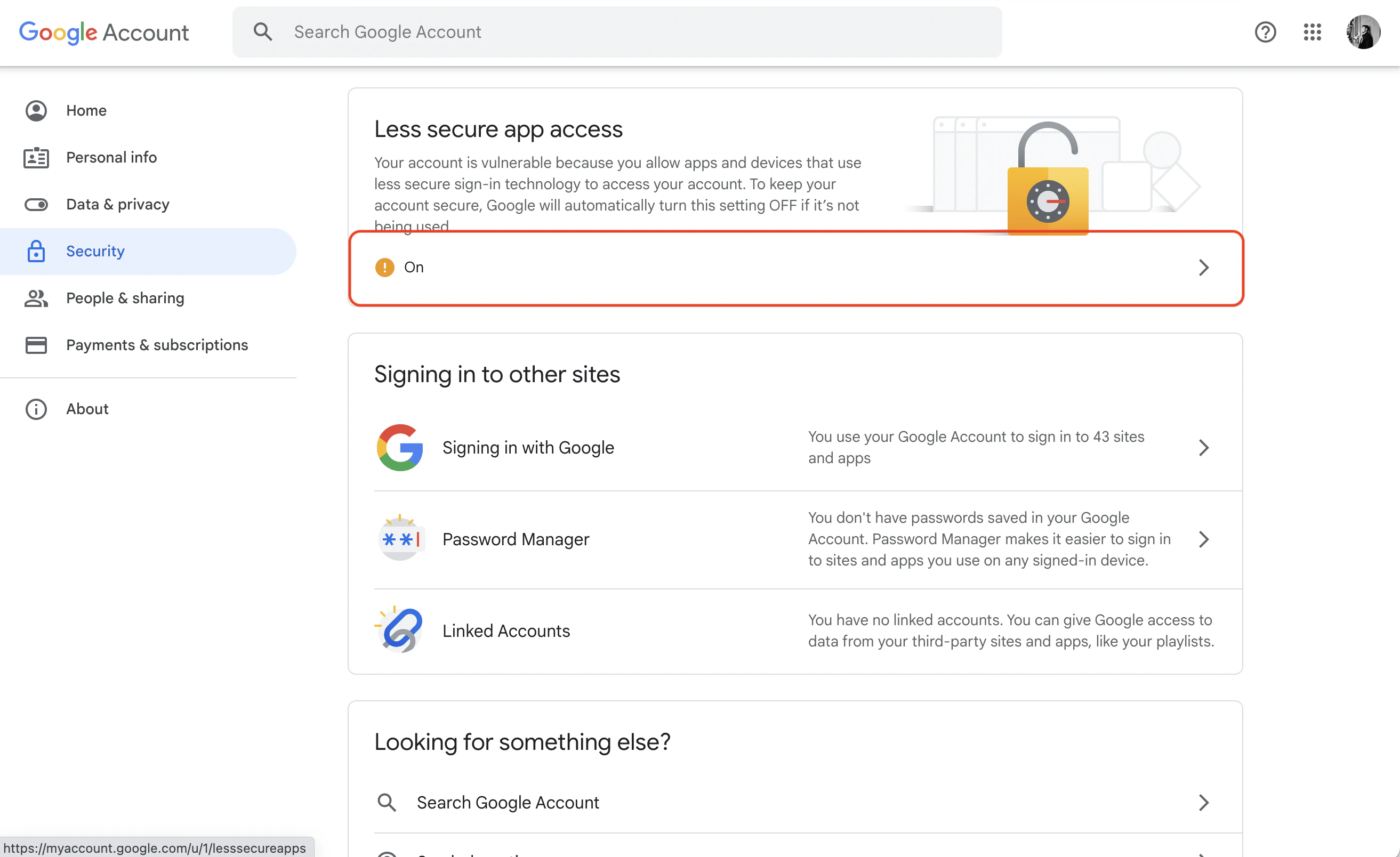
Office365
Office365
- Create an account and configure Office365 to send emails.
- With your login credentials, set your SMTP environment variables:
Zoho Mail
Zoho Mail
- Create an account and configure Zoho Mail to send emails.
- With your email credentials, set your SMTP environment variables:
You can use either your personal Zoho email address like
[email protected] or a domain-based email address like [email protected]. If using a domain-based address, make sure you’ve configured and verified it with Zoho Mail.Remember to restart Agent Vault after changing environment variables.
SMTP2Go
SMTP2Go
- Create an account and configure SMTP2Go to send emails.
- Turn on SMTP authentication and set your environment variables:
TLS is available on ports 2525, 80, 25, 8025, and 587. SSL is available on ports 465, 8465, and 443.